

Active Patients Overview
The Active Patients section in your PlacidWay Provider Portal is your central hub for managing patient inquiries, engagement, and follow-ups. From viewing detailed patient information to initiating chats, calls, emails, and virtual consultations, this feature ensures you can provide timely and personalized care to each patient.
Step-by-Step Guide to Using Active Patients
1. Accessing the Active Patients Section
Log in to your PlacidWay account.
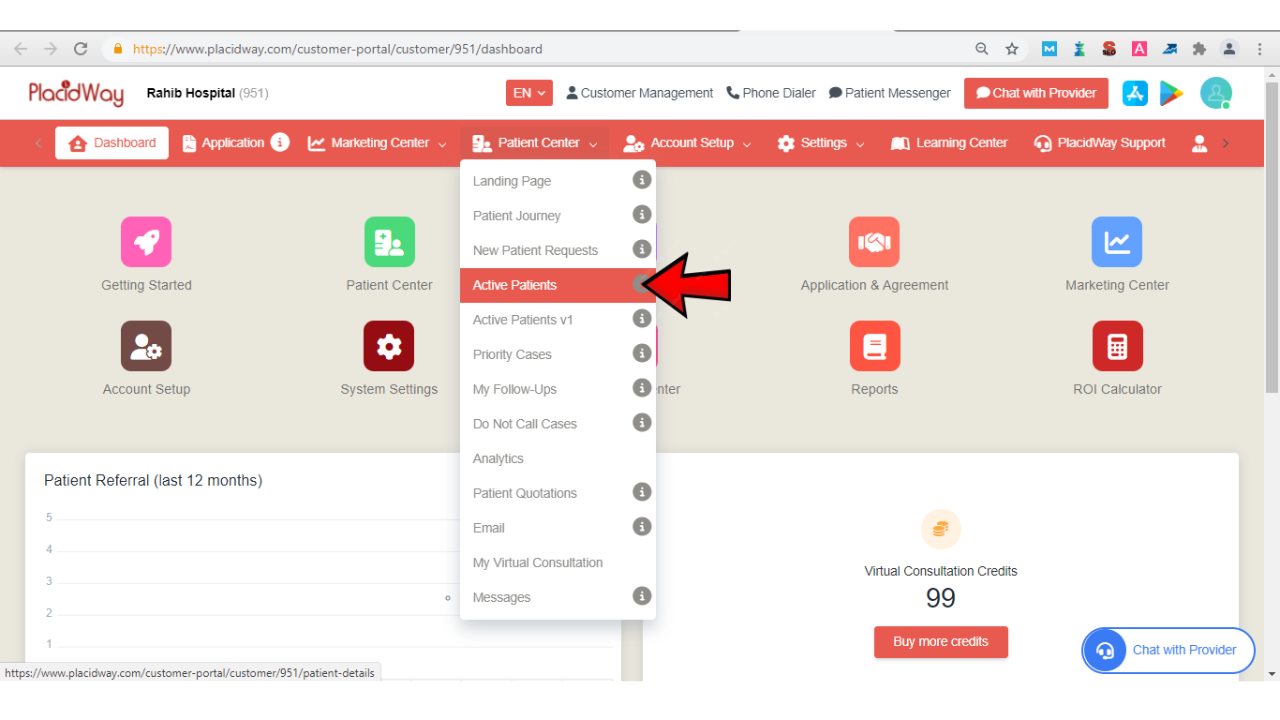
Navigate to the dashboard on your profile. Hover over the Patient Center option in the top menu. From the submenu, select Active Patients.
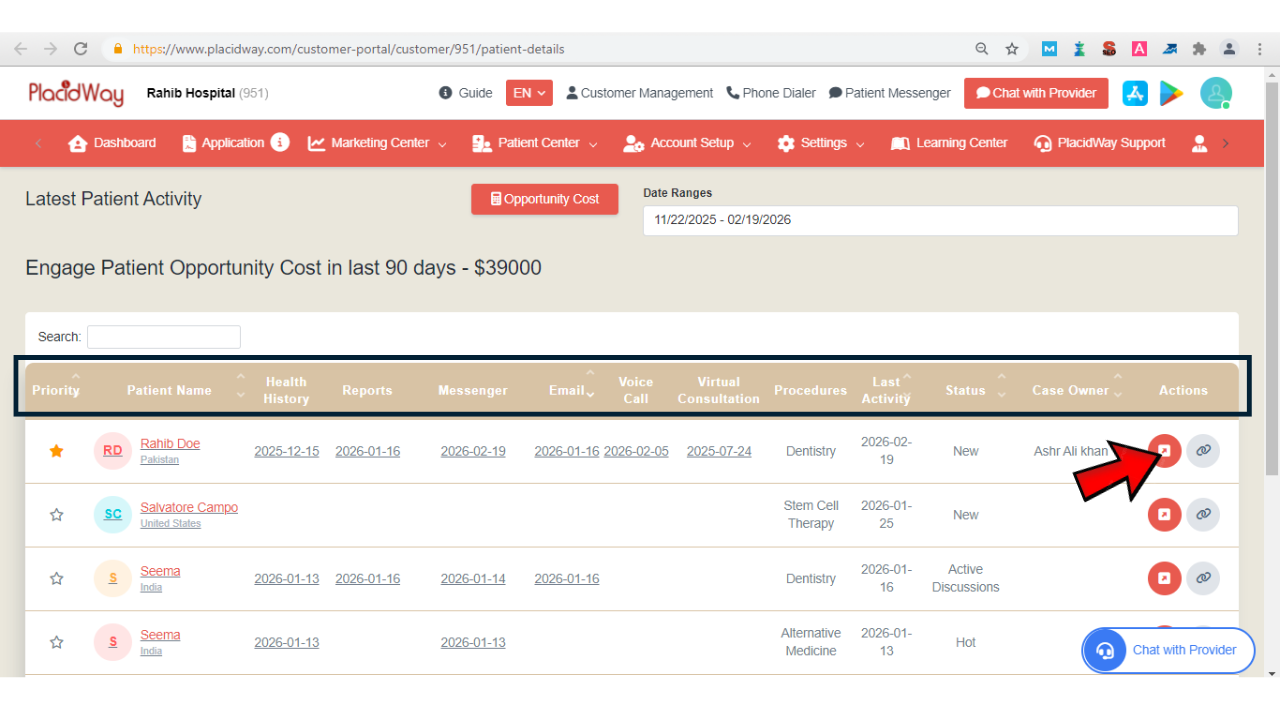
Your page will display the Patient Engagement Detail, showing key sections:
-
Priority
-
Patient Name
-
Health History
-
Reports
-
Messenger
-
Email
-
Voice Call
-
Virtual Consultation
-
Procedures
-
Last Activity
-
Status
-
Case Owner
-
View Details button
Click the View Details button or any section link to examine the patient inquiry, reports, and health history. Select the patient whose details you wish to access.
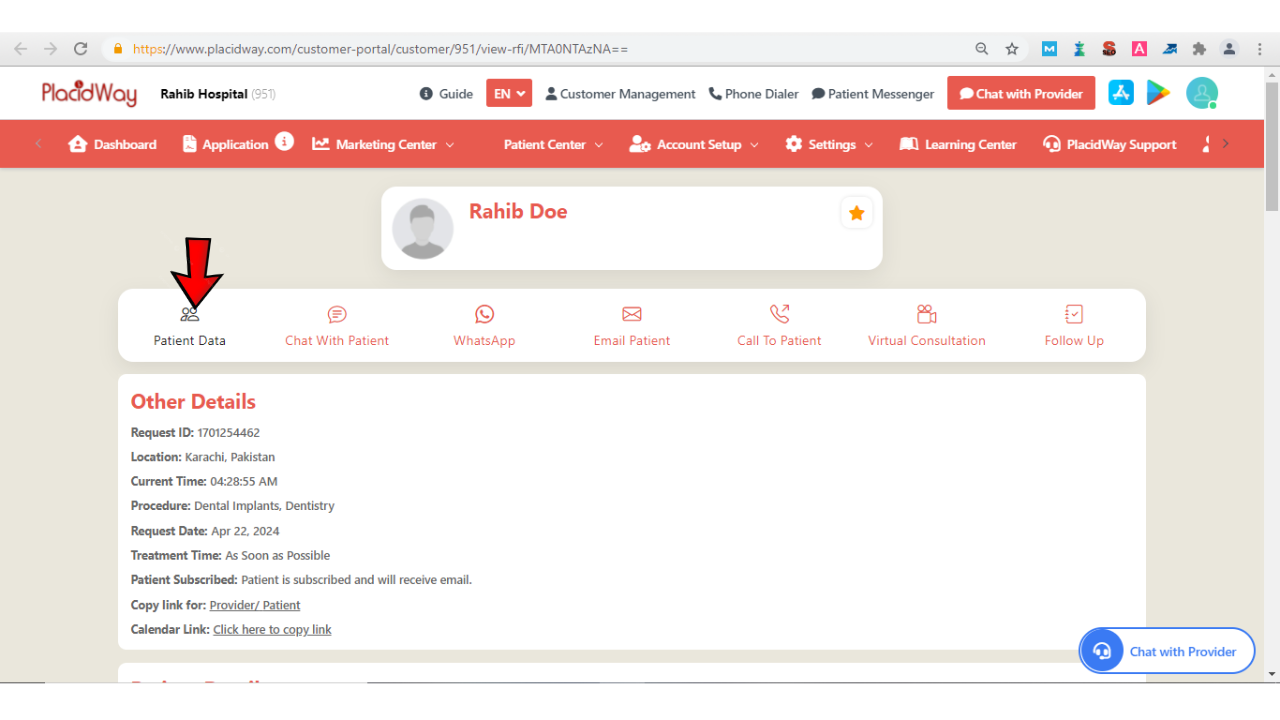
2. Accessing the "Patient Data" Tab
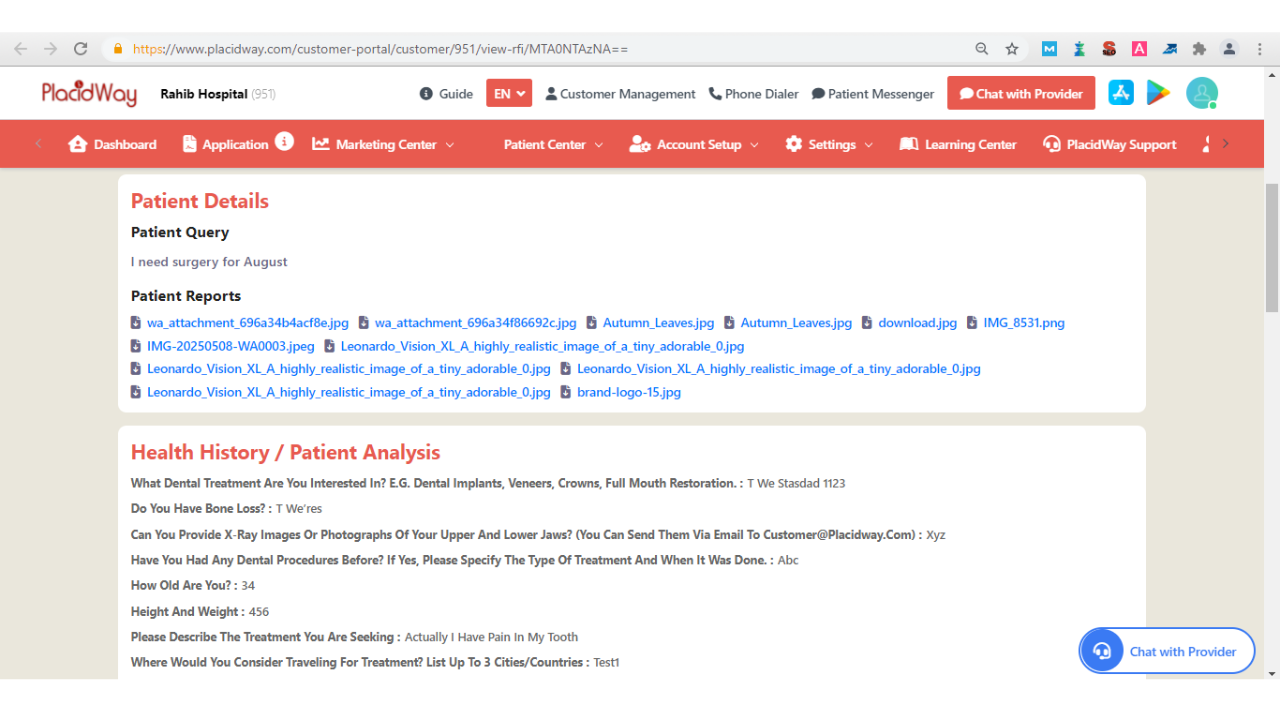
Here, you can view complete patient information and their health history. This helps you understand their medical background and prepare for consultations or follow-ups, and see their Medical History as well.
3. Accessing the "Chat with Patient" and "WhatsApp" Tab
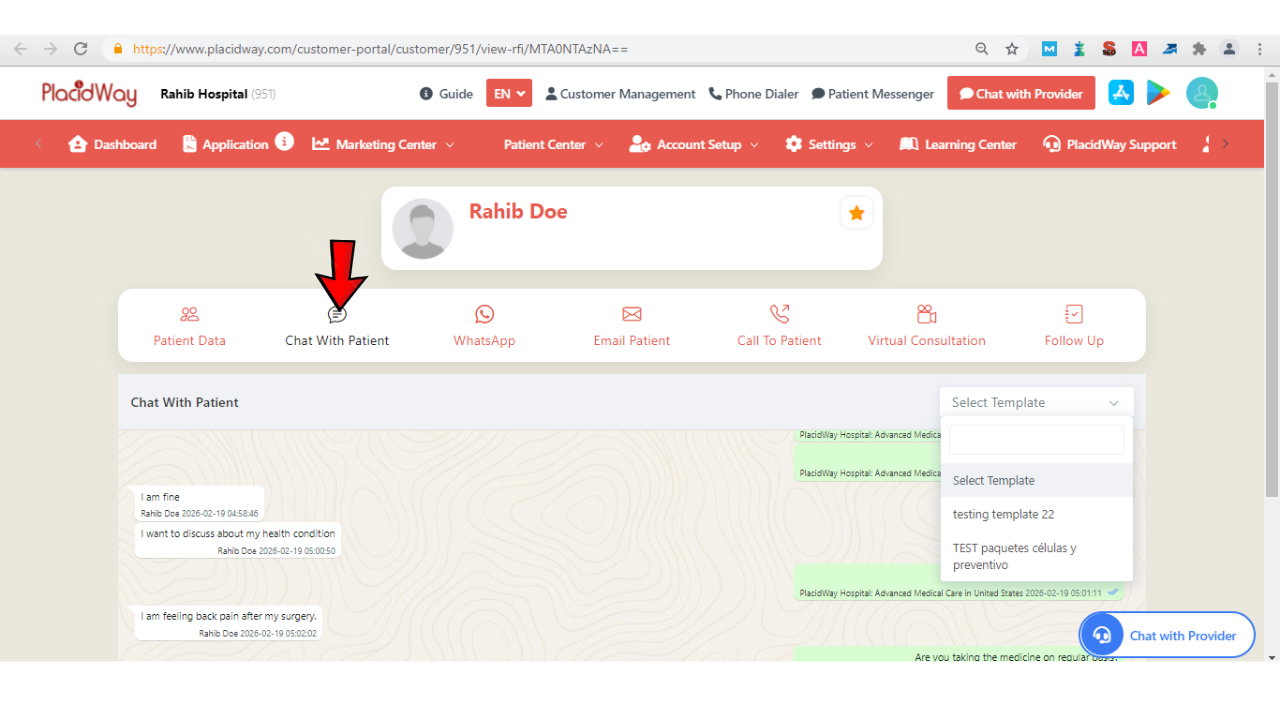
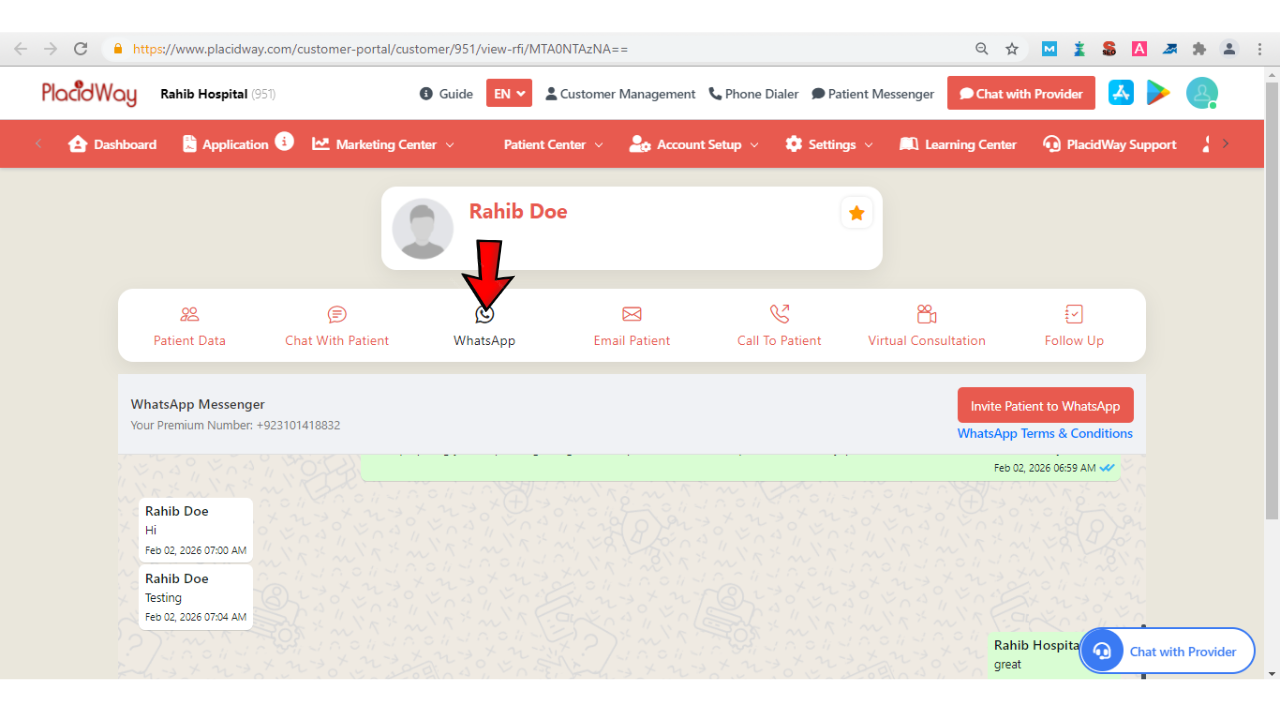
Use this feature to send instant messages to patients. You can also select from pre-made templates to communicate efficiently and maintain consistency.
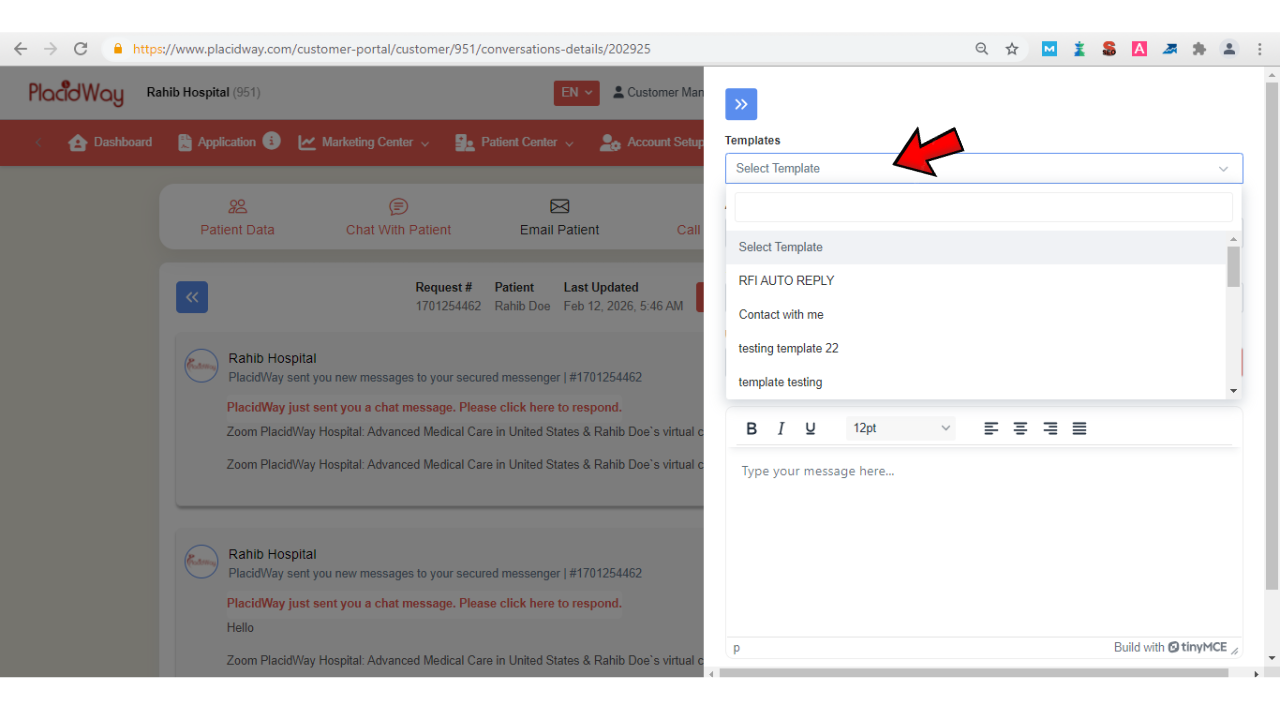
4. Accessing the "Email Patient" Tab
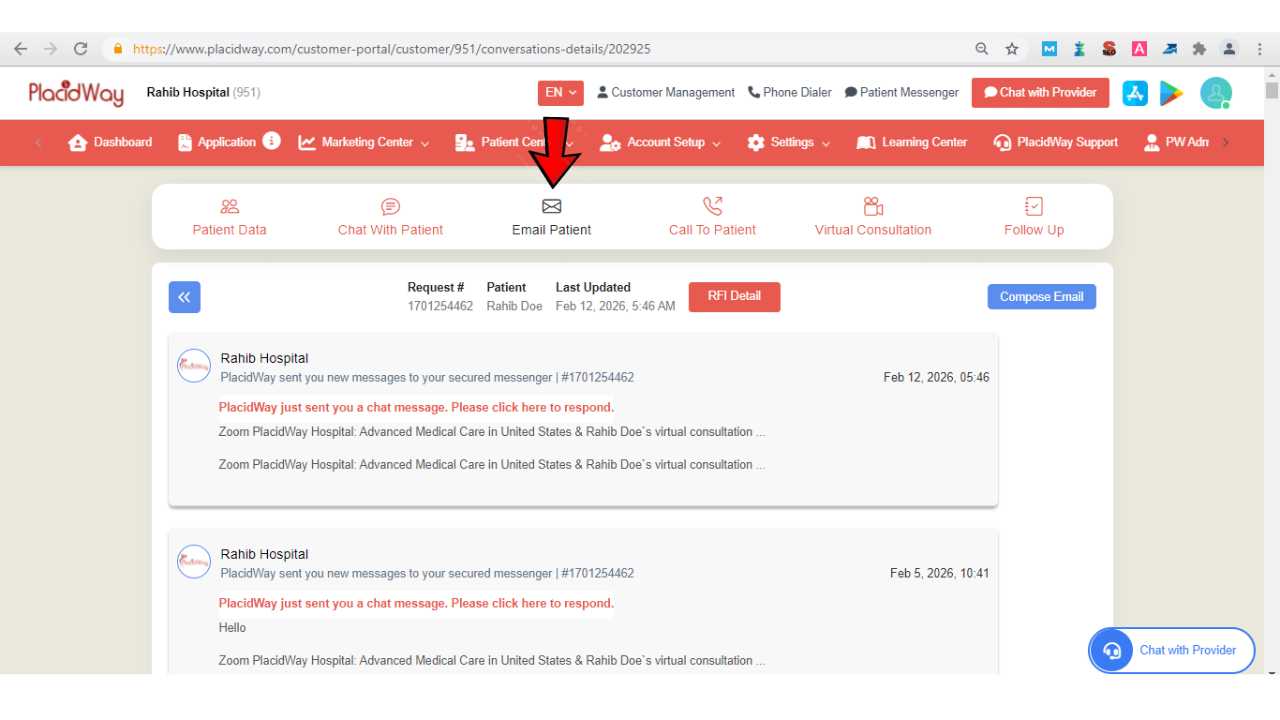
Send emails directly to patients by clicking Compose Email. You can use templates, attach documents, and upload files as needed for follow-ups or information sharing.
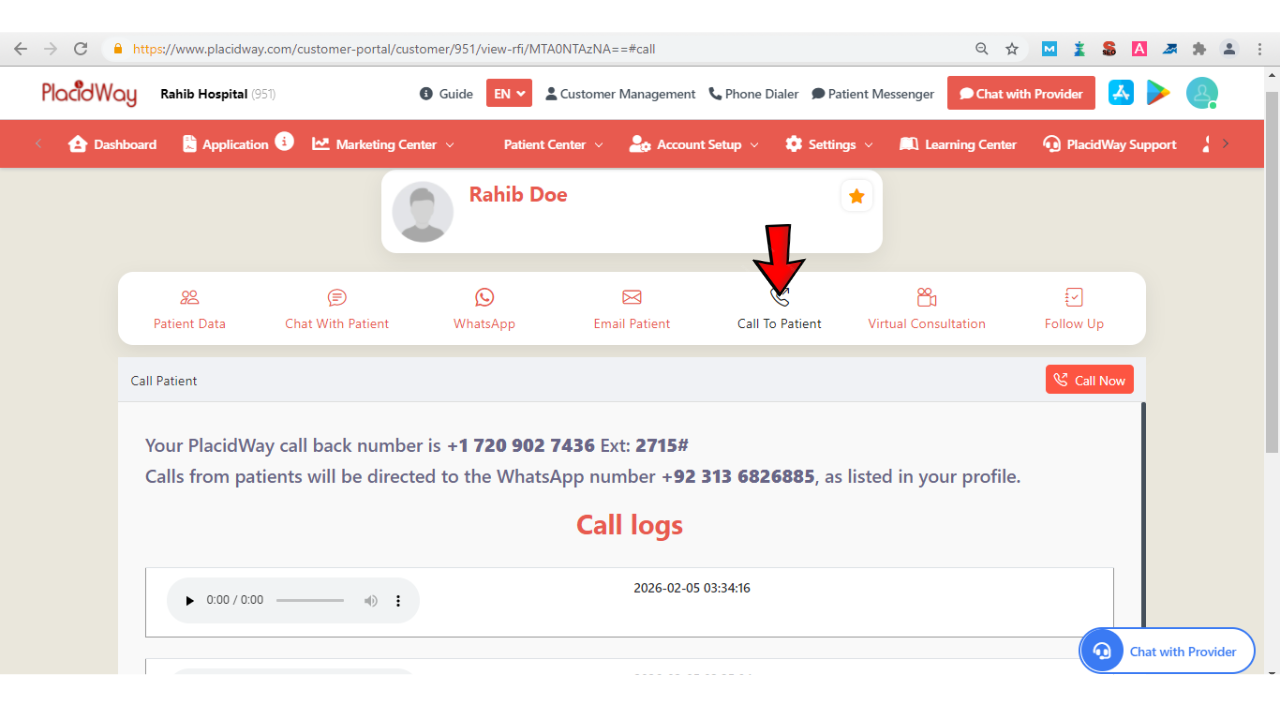
5. Accessing the "Call to Patient" Tab
Connect with patients via audio calls. Click Call Now to start direct communication and address patient queries promptly.
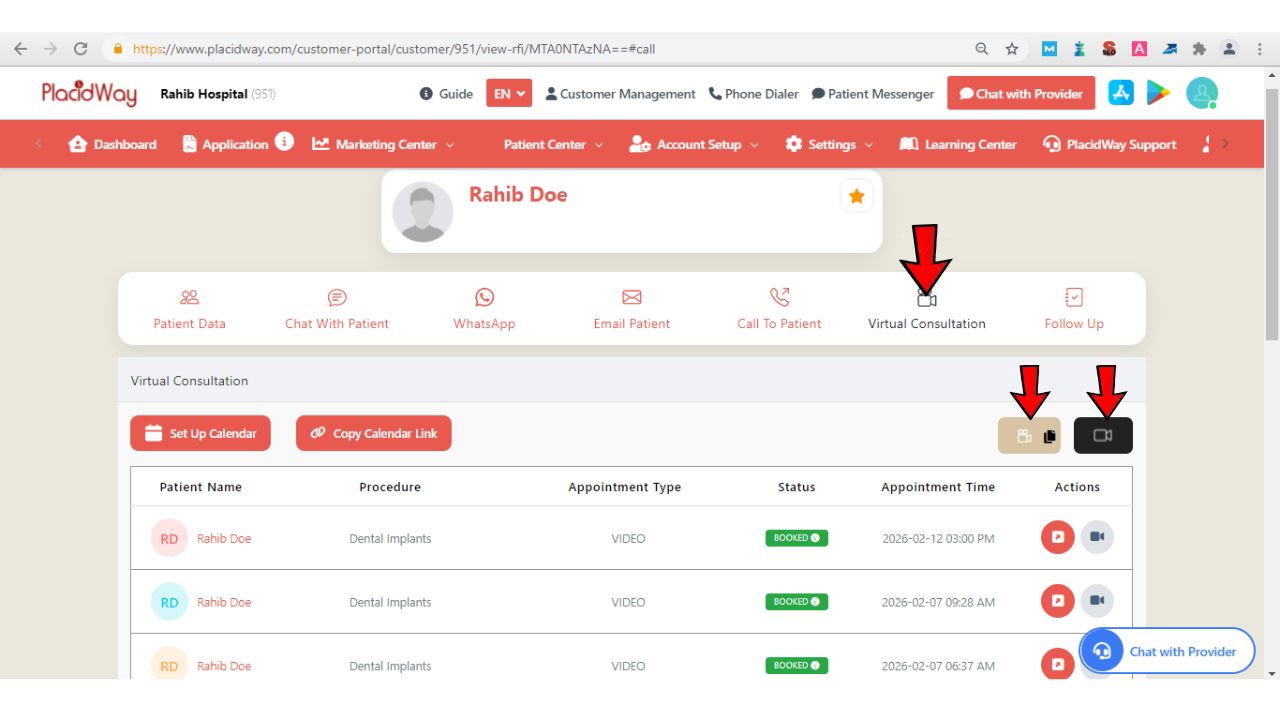
6. Accessing the "Virtual Consultation" Tab
Schedule or start a virtual consultation with patients. Click Invite Virtual Consultation to set up a meeting or Video Call Now to begin immediately.
7. Accessing the "My Follow Up" Tab
Keep track of all patient interactions and next steps:
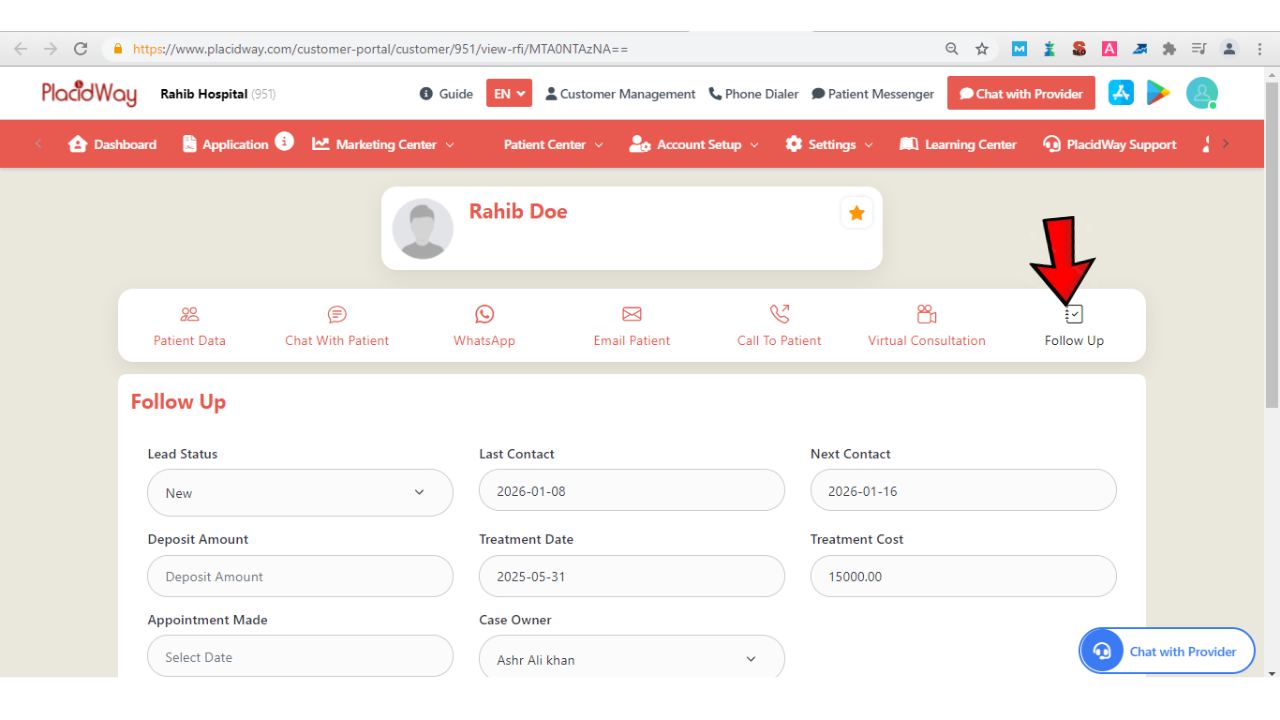
Lead Status: Select current status (e.g., New, No Response, Active Discussions, Appointment, Patient, Do Not Contact).
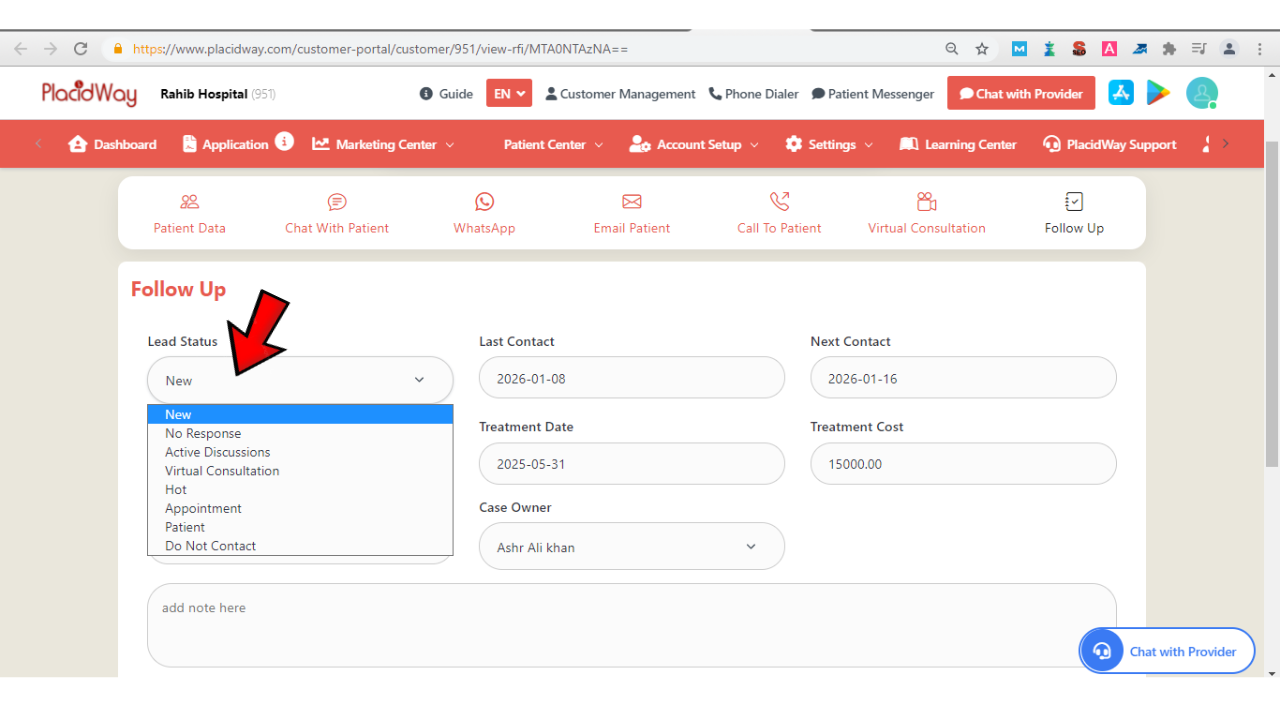
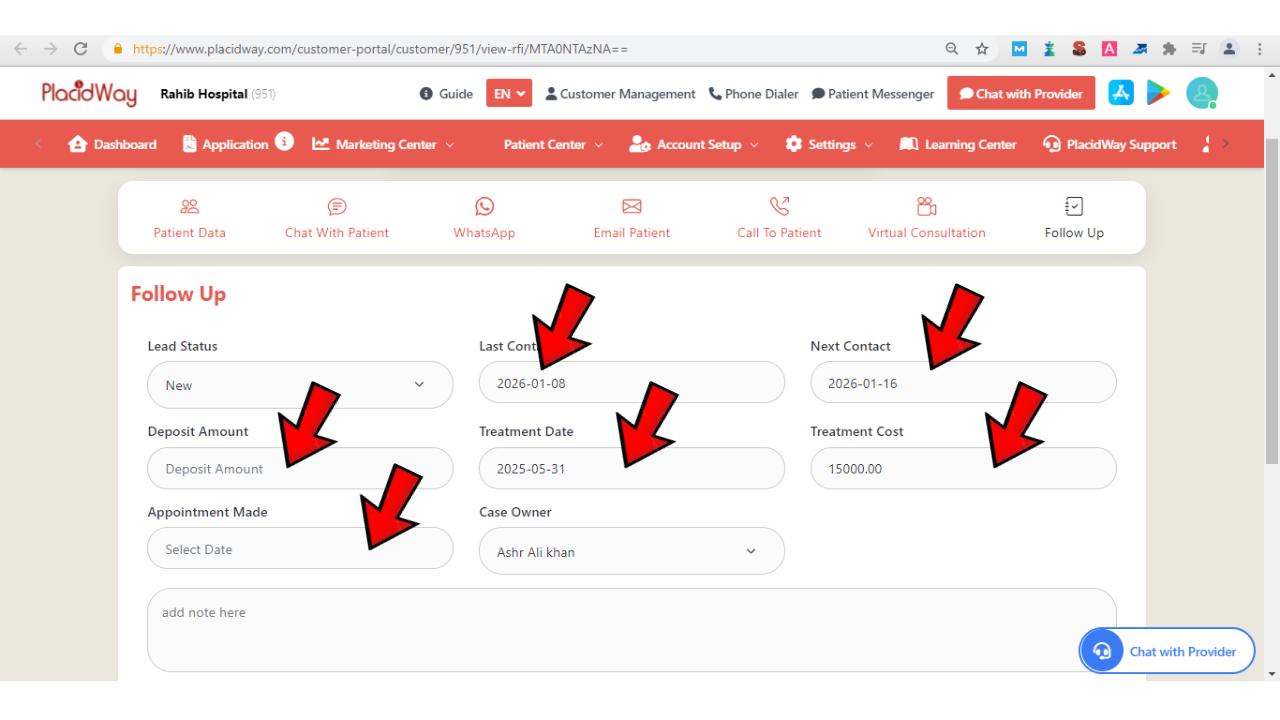
Last Contact: Enter the date of the most recent interaction.
Next Contact: Set the follow-up date to ensure the patient appears in your My Follow-Ups list.
Deposit Amount: Record any deposits received.
Treatment Data & Cost: Enter relevant treatment information and estimated or confirmed costs.
Appointment Date: Log the scheduled appointment date.
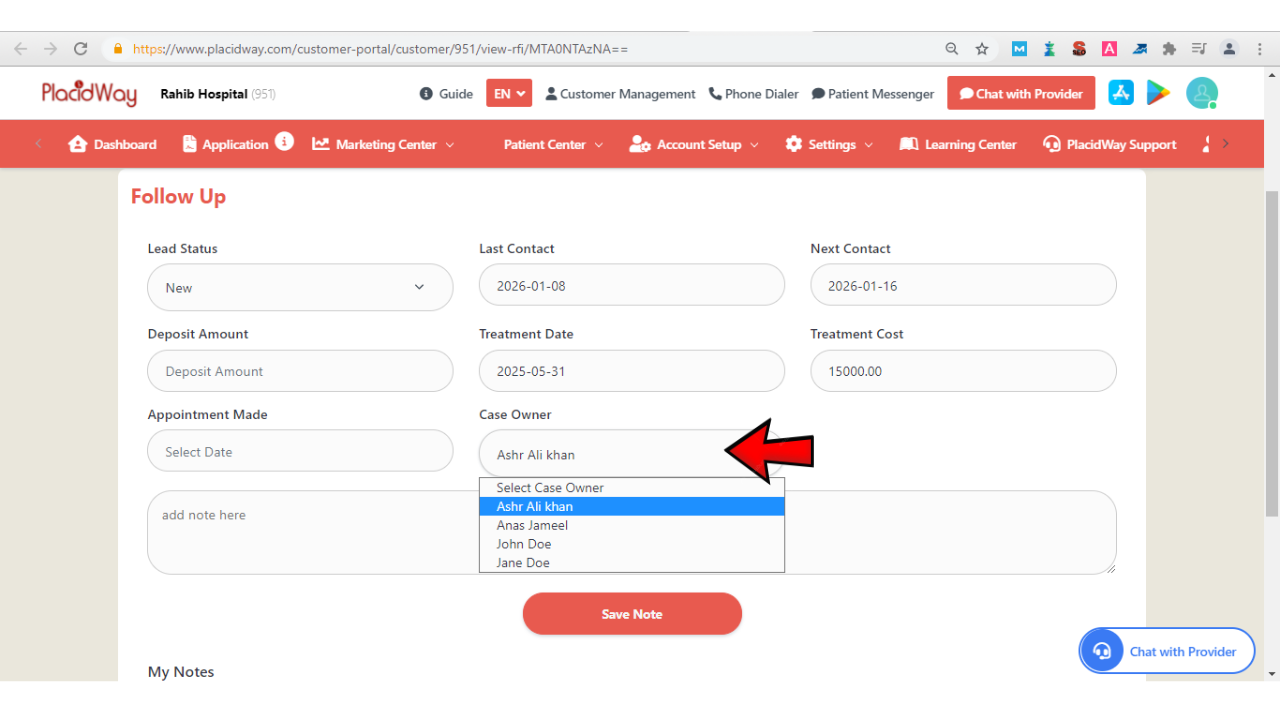
Case Owner: Assign the responsible staff member.
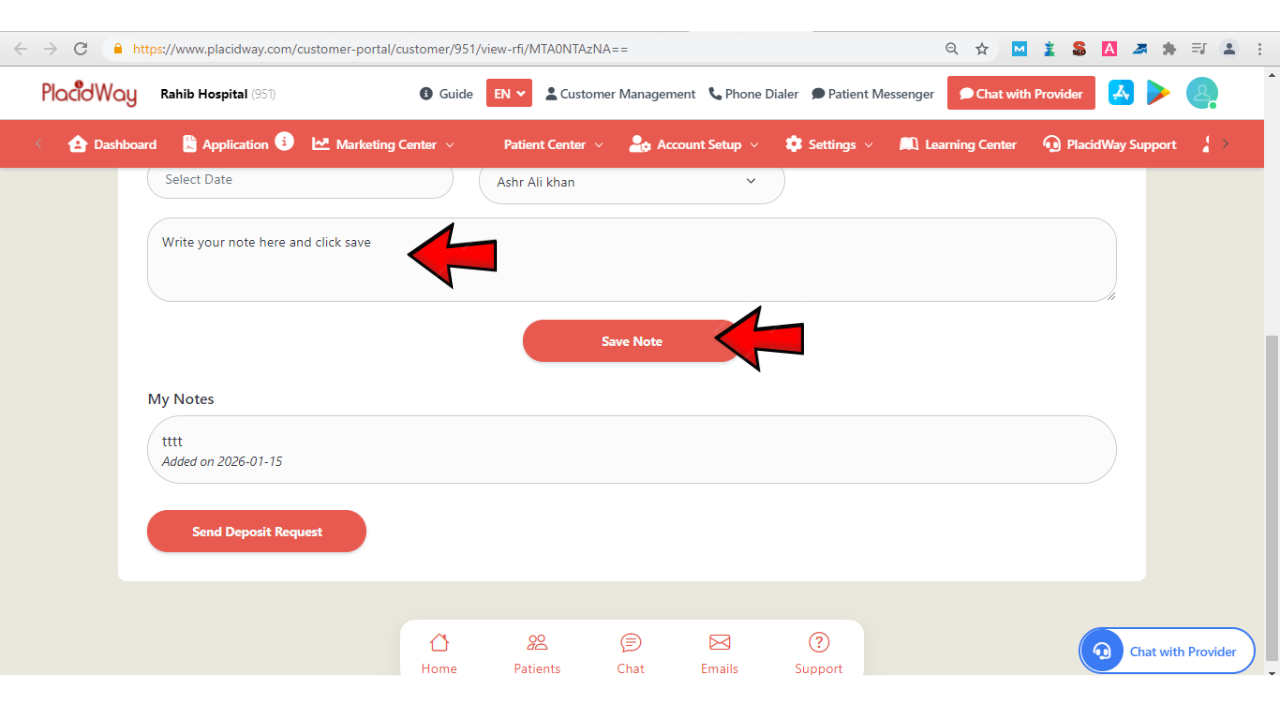
Add Note: Include updates or key information about the patient’s journey, then click Save Note.
Why Use the Active Patients Feature?
Manage all communication channels—chat, WhatsApp, email, and calls—in one single dashboard.
Access complete health histories and medical reports before engaging, ensuring personalized care.
Set "Next Contact" dates and track lead statuses to keep your patient pipeline moving efficiently.
Use virtual consultations and direct voice calls to build immediate trust and increase conversion rates.
Start Engaging Your Patients Today
With the Active Patients feature, managing your patient journey has never been easier. From detailed health insights to seamless communication via chat, email, call, or virtual consultations, everything you need to keep patients engaged and informed is at your fingertips. Log in to your PlacidWay Provider Portal and start connecting with your patients today.